
In this article (4)
The Airplan MCP links your AI assistant to your Airplan account. Once connected, the agent can read your projects and feasibility studies, look up information in an application and, if you allow it, fill in forms or add photos. It does not submit anything and does not sign anything.
All Airplan accounts have access to it: paid accounts, and free accounts until their trial project has been used.
The connector address is:
https://workspace.airplan.be/mcp/workspace1. Add the connector in your assistant
In Claude:
- Open the settings, go to “Connectors”, then click “Add custom connector”.
- Give it a name, for example “Airplan”, and paste the address above.
- Keep the detected options: connect now for authentication and automatic registration for the OAuth client. You do not need to add a key or a header.
- Confirm.
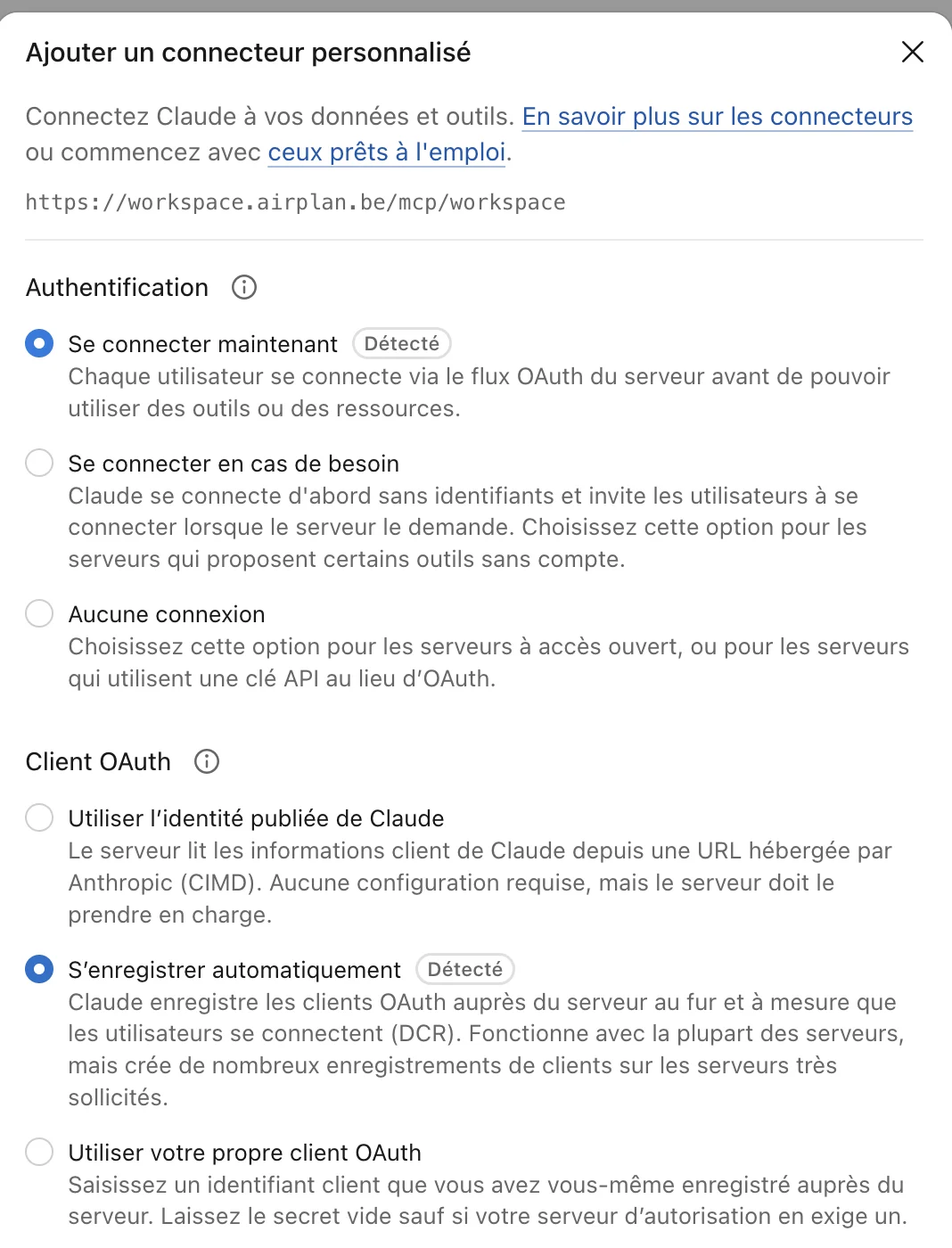
In ChatGPT or another assistant, the process is the same: add a custom MCP connector with this address and choose the OAuth connection.
2. Authorise access to your account
The assistant opens an Airplan page. Log in if necessary, check the account shown, then click “Autoriser” (authorise).
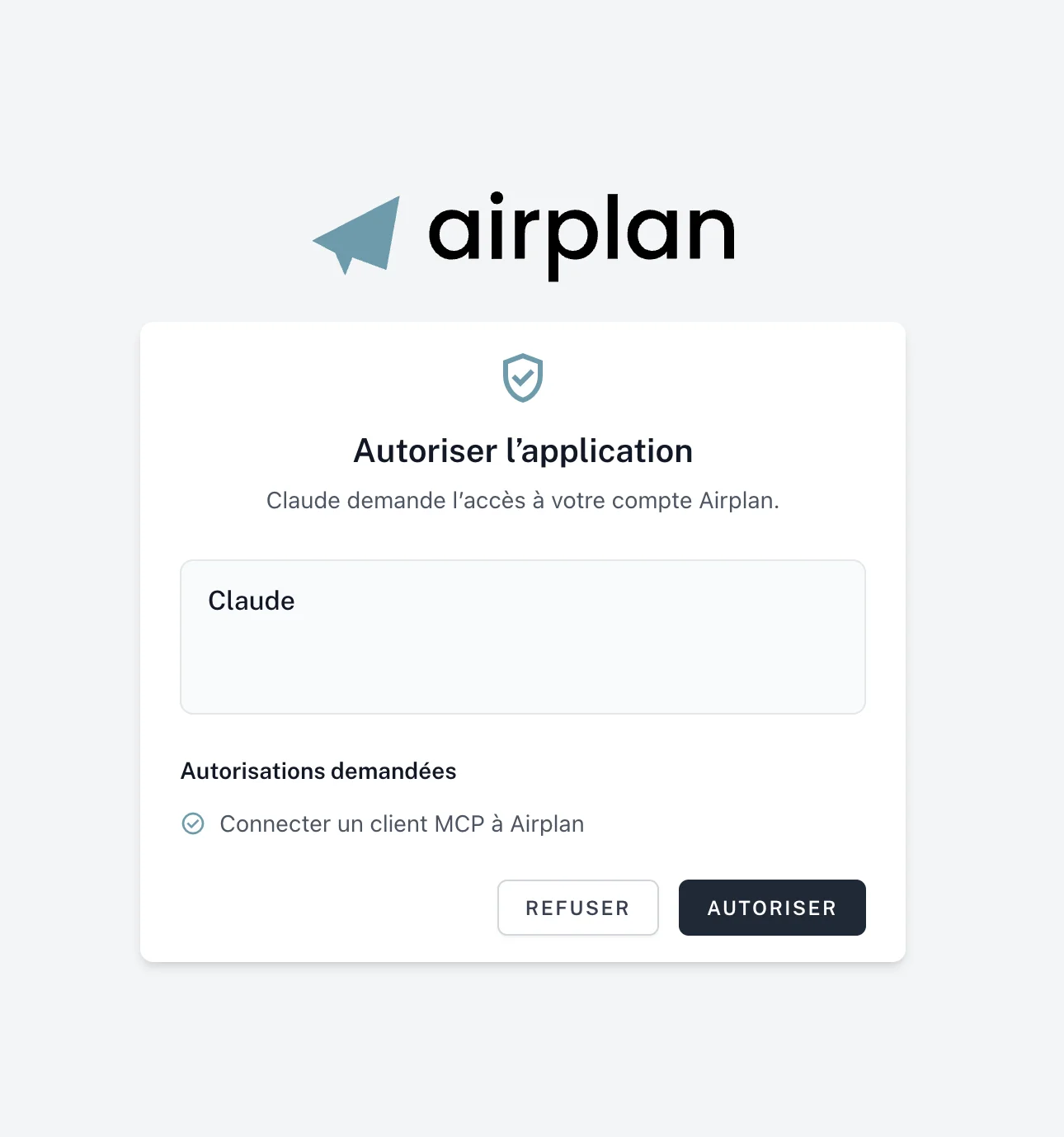
The agent is now connected. Ask it, for example: “List my ongoing projects” or “Review the rue des Écoles application and tell me which fields in box 6 of Annex 4 are empty.”
3. Choose what the agent can do
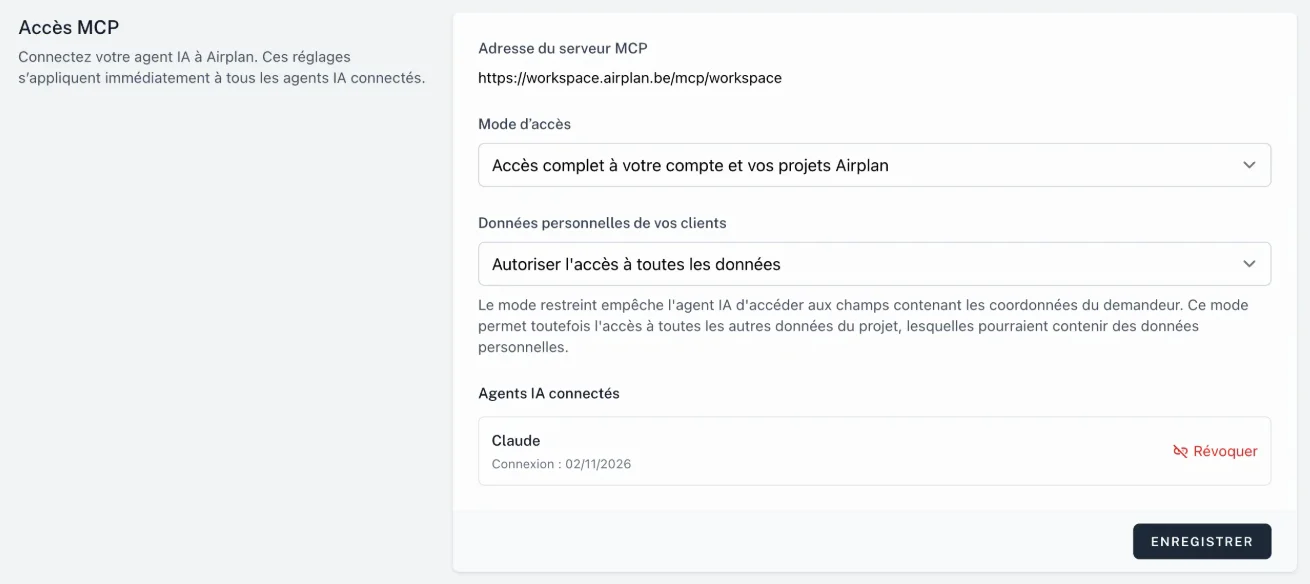
Click your name at the top right of the Workspace, then “Profil” (profile). The “Accès MCP” (MCP access) section brings the settings together:
- “Mode d’accès” (access mode): at first, the agent is read-only. Choose “Accès complet à votre compte et vos projets Airplan” (full access to your Airplan account and projects) to allow it to create projects, fill in forms or add photos.
- “Données personnelles de vos clients” (your clients’ personal data): in restricted mode, the agent cannot access the fields that contain the applicant’s contact details, and cannot find them through a search. It sees all the other project data, and attached documents (a letter in PDF, for example) may contain personal data.
- “Agents IA connectés” (connected AI agents): the list of agents that have access to your account, with the connection date. “Révoquer” (revoke) removes their access.
Click “Enregistrer” (save). The settings apply immediately to all connected agents.
💡 Credits follow the usual rules: a project created by an agent uses up one project, just as in the Workspace. If the agent repeats the same creation after a connection drop, Airplan does not charge twice.
Good to know
- The agent only sees your account. It has no access to other practices’ applications.
- It does not submit the application to the municipality and does not sign anything. Marking an application as “déposé” (submitted) only records the status in Airplan.
- Some fields can only be filled in within Airplan. When a field cannot be changed by the agent, it tells you so and gives you the link to the form in the Workspace.
- It does not delete any project or photo. It can only remove an item from a list in a form, for example a room from the natural lighting note.
- Check what it states. An agent can make mistakes or carry over a false premise. The official data remains the project data, with its link to the source.
To find out more, read what the Airplan MCP can do, with a demonstration on a fictitious application. A question or a connection problem: bonjour@airplan.be.