
In this article (3)
When an application is submitted by several project owners (a couple, co-owners, etc.), each applicant must sign the document. The “Signatures” section lets you add as many applicants as needed.
Adding another applicant
-
Open your project, then click “Éditer le document” (edit document) for the document concerned (for example Annex 4).
-
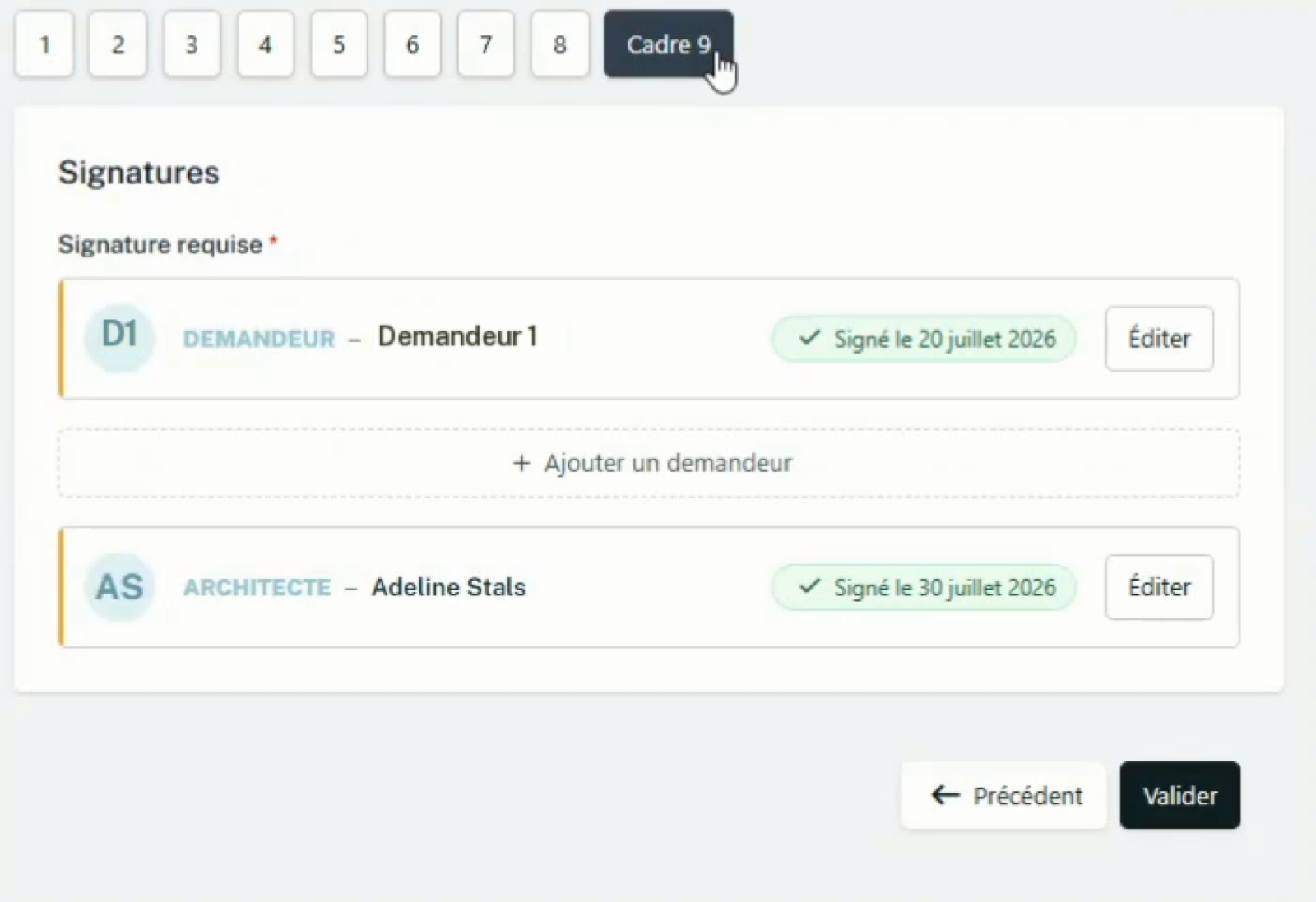
Go to the last section of the form: the “Signatures” section (section 9 for Annex 4).
-
Click ”+ Ajouter un demandeur” (add an applicant).
-
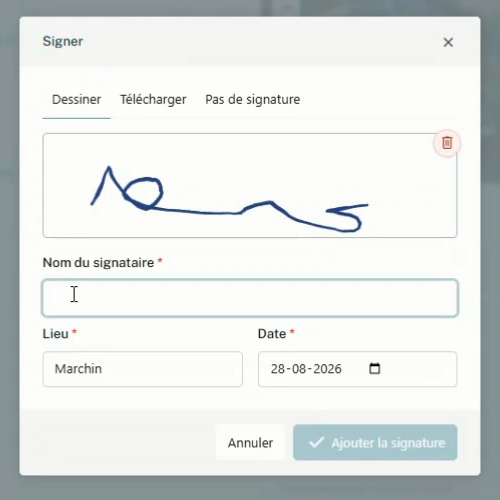
In the “Signer” (sign) window, enter the signatory’s name, the place and the date, then choose one of the three ways to sign (see below).
-
Click “Ajouter la signature” (add signature).
-
Repeat for each co-applicant, then click “Valider” (confirm).
Each applicant you add appears in the list in the Signatures section and will be included in the generated document:
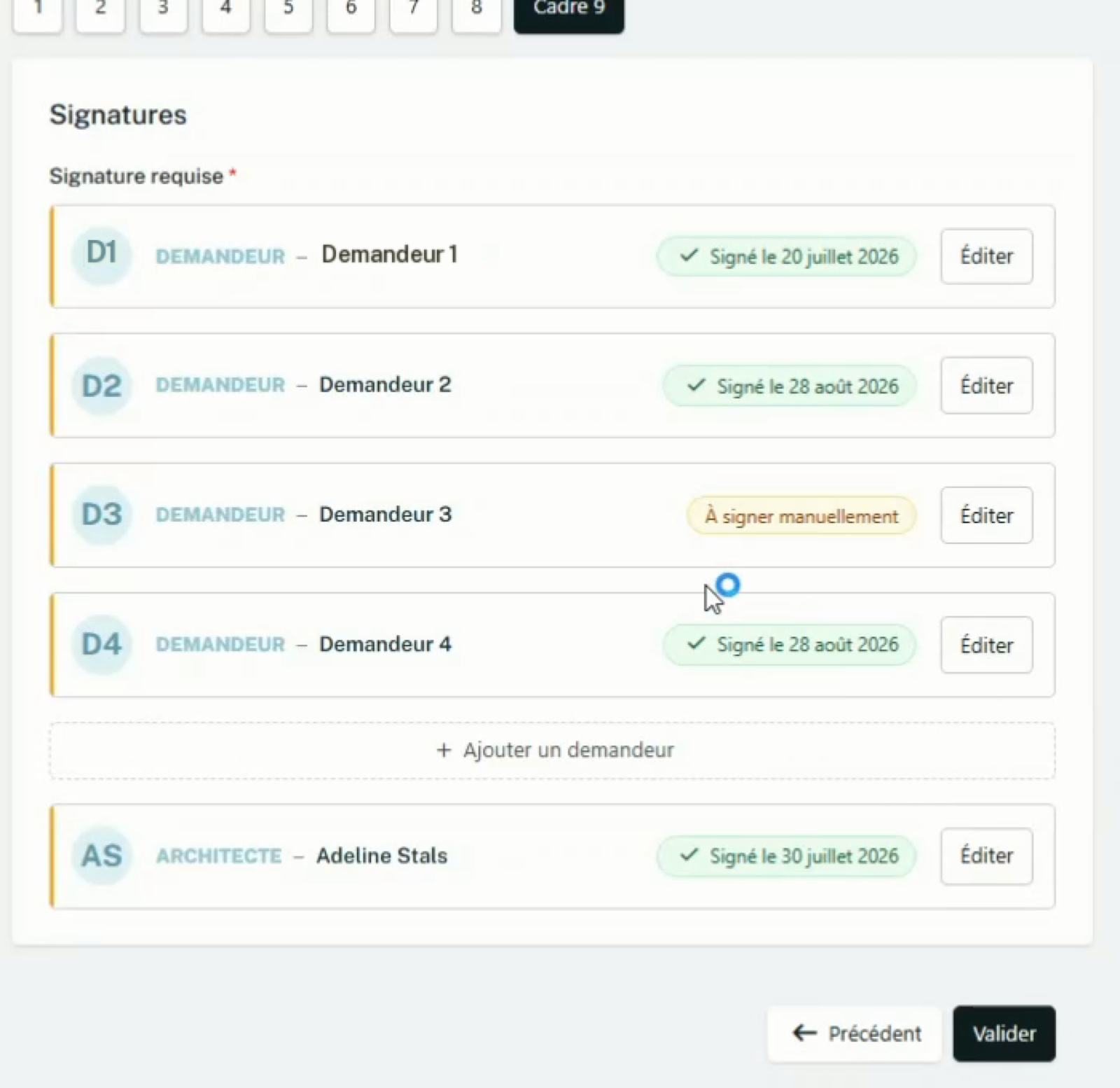
To change or remove an existing signature, click “Éditer” (edit) next to the applicant concerned.
Three ways to sign
| Tab | How it works |
|---|---|
| ”Dessiner” (draw) | Draw the signature with the mouse, or with your finger on a touchscreen, directly in the box provided. |
| ”Télécharger” (upload) | Import an image of the signature (PNG, JPG, TIFF or WEBP, up to 20 MB). |
| ”Pas de signature” (no signature) | The name, place and date are entered in the document and a blank space is left for signing by hand. The applicant is then marked “À signer manuellement” (to be signed by hand). |
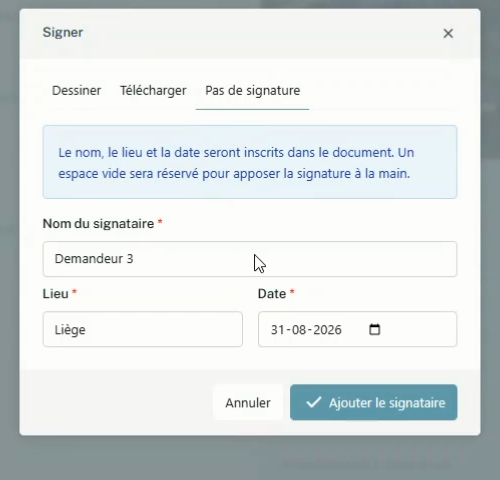
💡 The place and date are set for each signatory individually, so you can adjust them if the co-applicants sign in different places or on different dates.